
Schedule Transformation Plans
Schedule your data transformation plans to run automatically at regular intervals. Set up recurring execution on your preferred schedule and manage active schedules from the transformation plan overview.
| The Schedule option is available only for plans that can be executed (not for rules or embedded plans). |
Why schedule transformation plans?
Scheduling transformation plans allows you to:
-
Automate recurring tasks: Run data transformations on a regular basis without manual intervention.
-
Maintain up-to-date data: Keep your datasets current by scheduling transformations during off-peak hours.
-
Support business processes: Align transformation schedules with your organization’s data processing needs.
Schedule a transformation plan
To set up a schedule for your transformation plan:
-
Go to Manage reference data > Data transformation > Plans and select the plan you want to schedule.
-
Select Schedule from the three dots menu.
The scheduling dialog opens.
-
Configure your schedule.
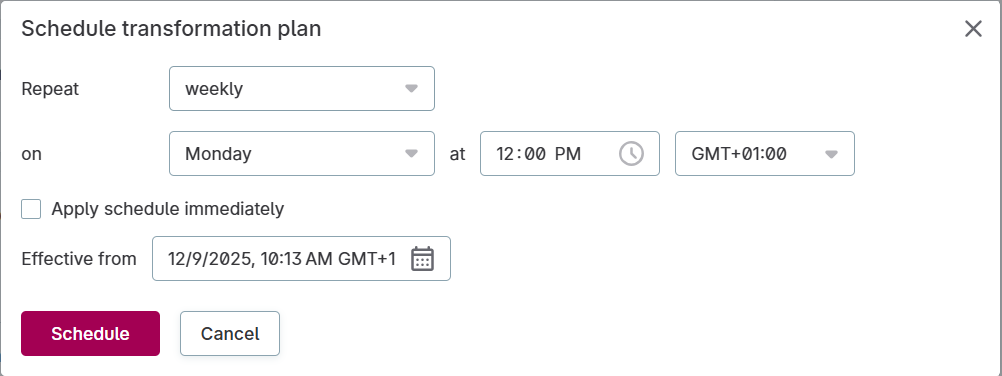
Repeat options
Choose how frequently your transformation should run:
-
Hourly: Every hour.
-
Daily: Every day at a specified time.
-
Weekly: On a selected day of the week at a specified time.
-
Monthly: On a selected day of the month at a specified time.
-
Yearly: On a specified date each year.
Time configuration
Set the specific time and timezone for your scheduled transformations:
-
Select the time when the transformation should run (for repeat types other than cron).
-
Choose your timezone from the Timezone dropdown.
For Cron repeat type:
-
Enter your cron expression in the Expression field.
-
The timezone still applies to the cron schedule.
Start date
Set when the schedule becomes active. Use this to schedule transformations to start in the future:
-
Enter the Effective from date and time.
-
The transformation will not run before this date.
View scheduled transformations
Once scheduled, you can see the transformation’s schedule status in the plan overview. The schedule section displays detailed information about your active schedule:
-
Schedule toggle: Shows if the schedule is currently active or paused.
-
Type: Displays the schedule frequency (HOURLY, DAILY, WEEKLY, MONTHLY, YEARLY, or CRON).
-
Valid from: Shows when the schedule becomes active.
-
Schedule settings: Displays the configured schedule details (for example, "At 12:00 PM").
-
Last run: Shows when the transformation last executed.
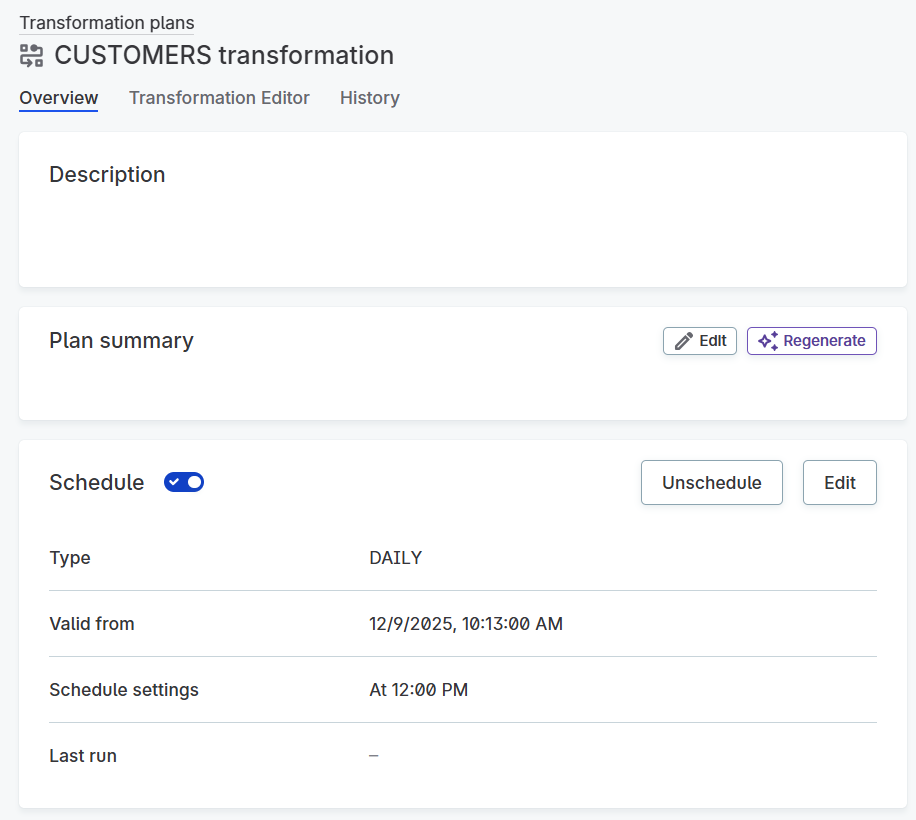
When a plan has an active schedule, it also has a label with an icon near the action buttons (such as Edit and Share) when viewing the transformation plan. Point to the icon to see details about the schedule.

Manage your schedule
Edit a schedule
To modify an existing schedule:
-
Open the transformation plan.
-
In the Schedule section, select Edit.
-
Modify your schedule configuration (see Repeat options and Time configuration).
-
Select Schedule to save changes.
Cron expressions for advanced scheduling
For complex scheduling requirements, use standard cron expressions with the Cron repeat type.
Cron expressions use the following format:
minute hour day-of-month month day-of-weekCommon cron expression examples
0 2 * * *0 8 * * 10 12 1,15 * *0 */6 * * *For more information about cron syntax, see crontab.guru or your system’s documentation.
Scheduled transformation execution
Once your schedule is active, transformations run automatically according to your configuration:
-
Scheduled executions appear under Workflows in the Processing Center.
-
If a scheduled execution fails, review the error in the Processing Center and adjust your plan or schedule as needed.
Was this page useful?