
File Export Step
Export data from a transformation plan to a file storage location in CSV format. Currently supports Amazon S3.
Before you begin
Configure a file storage data source
Before you start, make sure your target file storage is configured as one of the data sources in ONE.
For Amazon S3:
-
If you plan to use PrivateLink communication, ensure that the S3 bucket is located in the same AWS Region as the Ataccama application (for example,
*.s3.eu-west-1.amazonaws.com). -
Configure write credentials for the S3 connection to enable file exports.
Configure the File export step
To export data from a transformation plan:
-
Add a File export step to your transformation plan.
-
Connect your data input to the File export step.
-
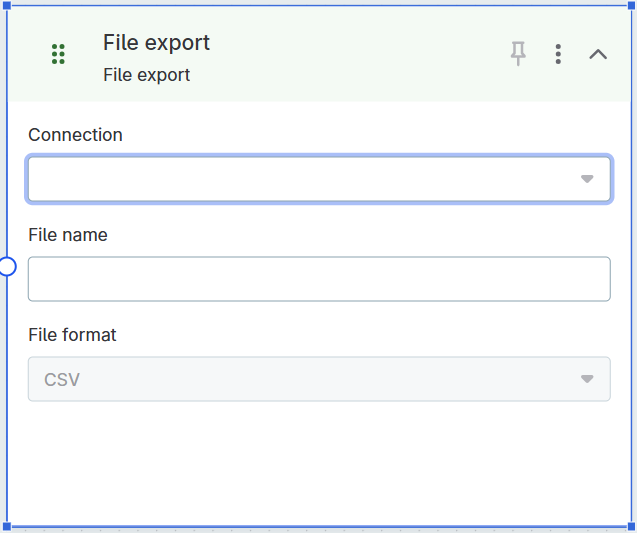
In the step configuration:
-
Connection: Select the storage connection where you want to export the data. Currently, only Amazon S3 connections are available in the dropdown.
-
File name: Specify the file name or file path for the exported file (for example,
example_folder/subfolder/output_file.csv).The file name must include the file extension (for example, city-codes.csv). -
File format: Select the export format (currently CSV only).
-
| You can add transformation steps (such as filters, joins, or aggregations) before the File export step to transform your data before exporting. To control which columns are written, use the Delete Attributes Step step to remove unwanted columns. |
Run or schedule the export
You can:
-
Run the plan manually to trigger an immediate export, or
-
Schedule the plan for regular exports.
Example: Export reference data tables
One common use case is exporting published reference data tables to file storage.
-
Publish your reference data table to make it available in the Catalog.
-
In the Catalog, navigate to the published reference data table.
-
From the catalog item, create a new Transformation standalone plan.
The published table will be automatically added as the data input to your plan.
For more information, see Export Reference Data Tables.
-
Add and configure the File export step as described above.
-
Run or schedule the plan.
When scheduled, the export will always use the latest published version of the reference data table at the time the plan runs.
For more details, see Export Reference Data Tables.
Known limitations
- CSV format only
-
Export currently supports CSV only.
- Limited file format settings
-
Configuration options such as date formats, separators, encoding, and other output settings are not yet available.
Was this page useful?