
DPM Admin Console
DPM Admin Console is a browser-based tool for supervising ONE jobs and the engines that process them. Use it to monitor and cancel jobs, trace job events, and manage and configure Data Processing Module (DPM) and the Data Processing Engines (DPEs) it supervises.
About DPM Admin Console
In DPM Admin Console, you can:
-
View all jobs run in ONE, such as importing metadata, profiling, DQ evaluation, and DQ monitoring, and cancel running jobs or change their priority.
-
View events associated with each job.
-
Manage all DPEs supervised by this instance of DPM.
-
Configure DPM and DPE, including the global runtime configuration, connection throttling rules, drivers, and the authentication between the two modules. See DPM and DPE Configuration in DPM Admin Console.
If you are using default configuration options for on-premise deployment, DPM Admin Console is available at http://localhost:8031.
Access permissions to DPM Admin Console can be limited based on user roles (by default, admin and DPP_admin) and it is also possible to set up single sign-on.
See DPM Configuration, section GraphQL and DPM Admin Console.
Jobs
View all data processing jobs that you executed in ONE. Filter jobs by job status (1) and sort by Name, Type, Created (time of creation), Submitting User, Priority, or Progress. Additionally, if the job is still running, you can cancel it by selecting Kill Job in the three-dot menu.
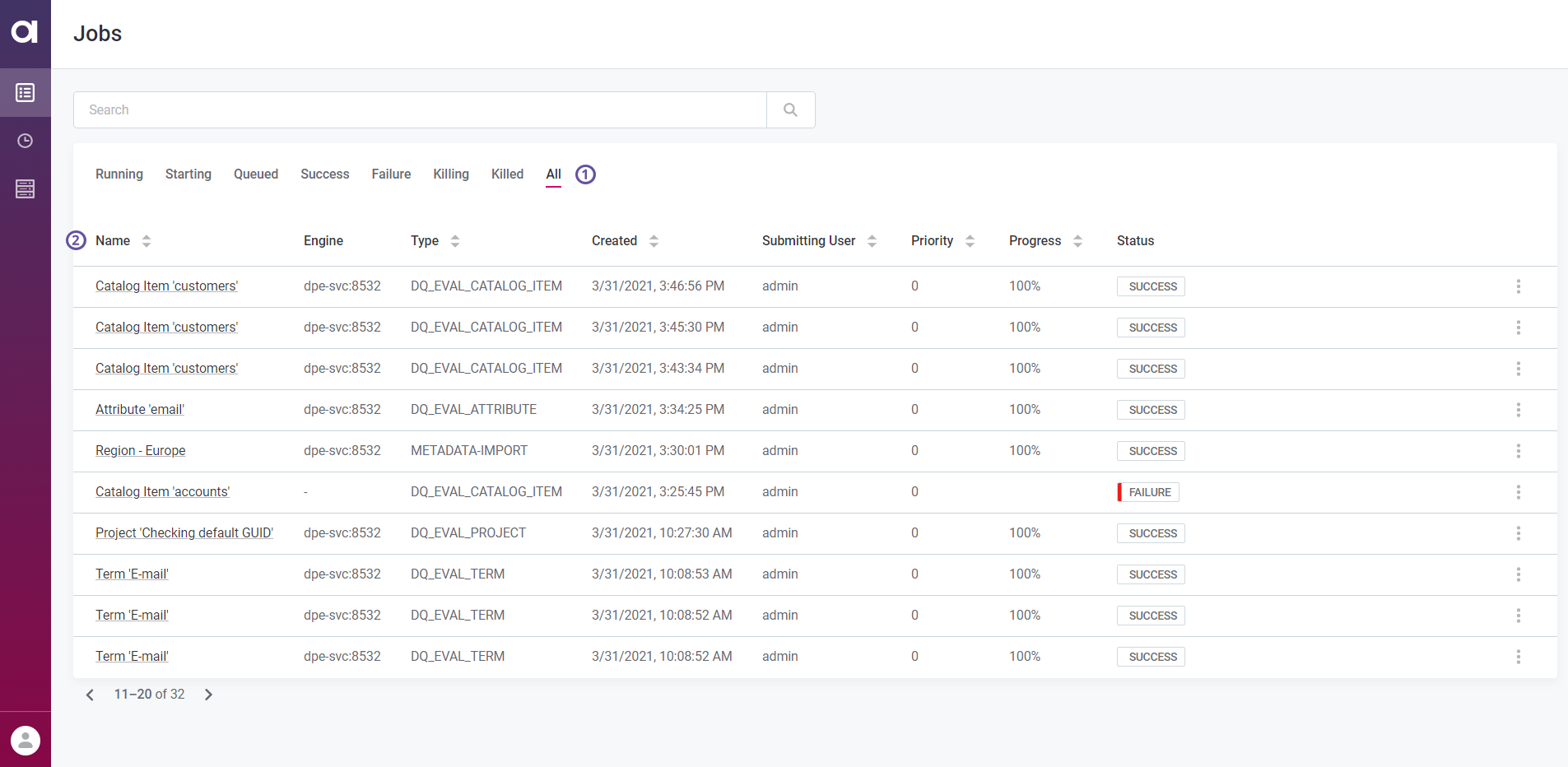
To view more details about a particular job, select the job from the list.
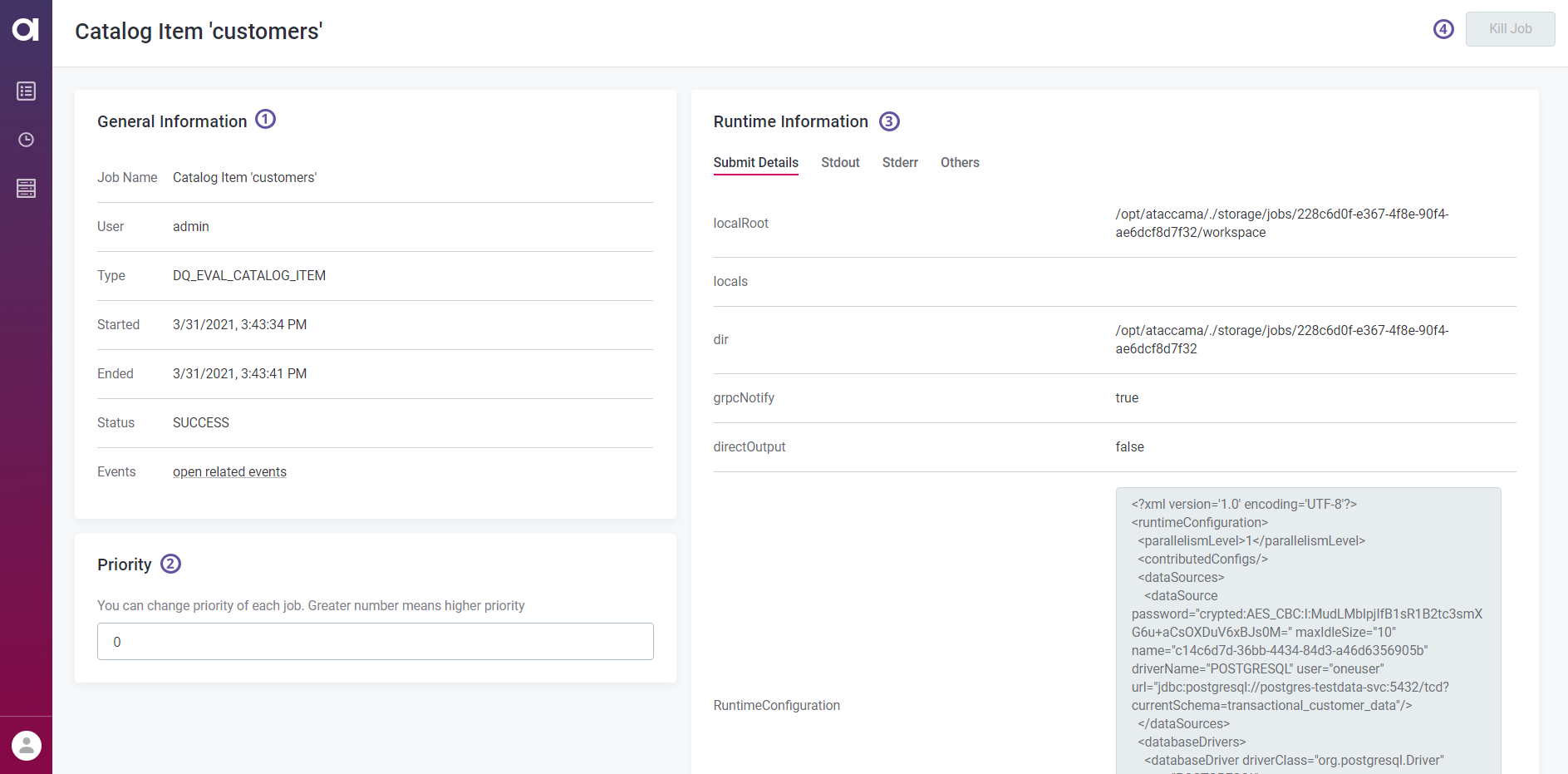
The job information is grouped as follows:
-
General Information (1): Basic information such as the job name, type, and status, the name of the user who submitted the job, the date and time when the job was started and finished, as well as related events.
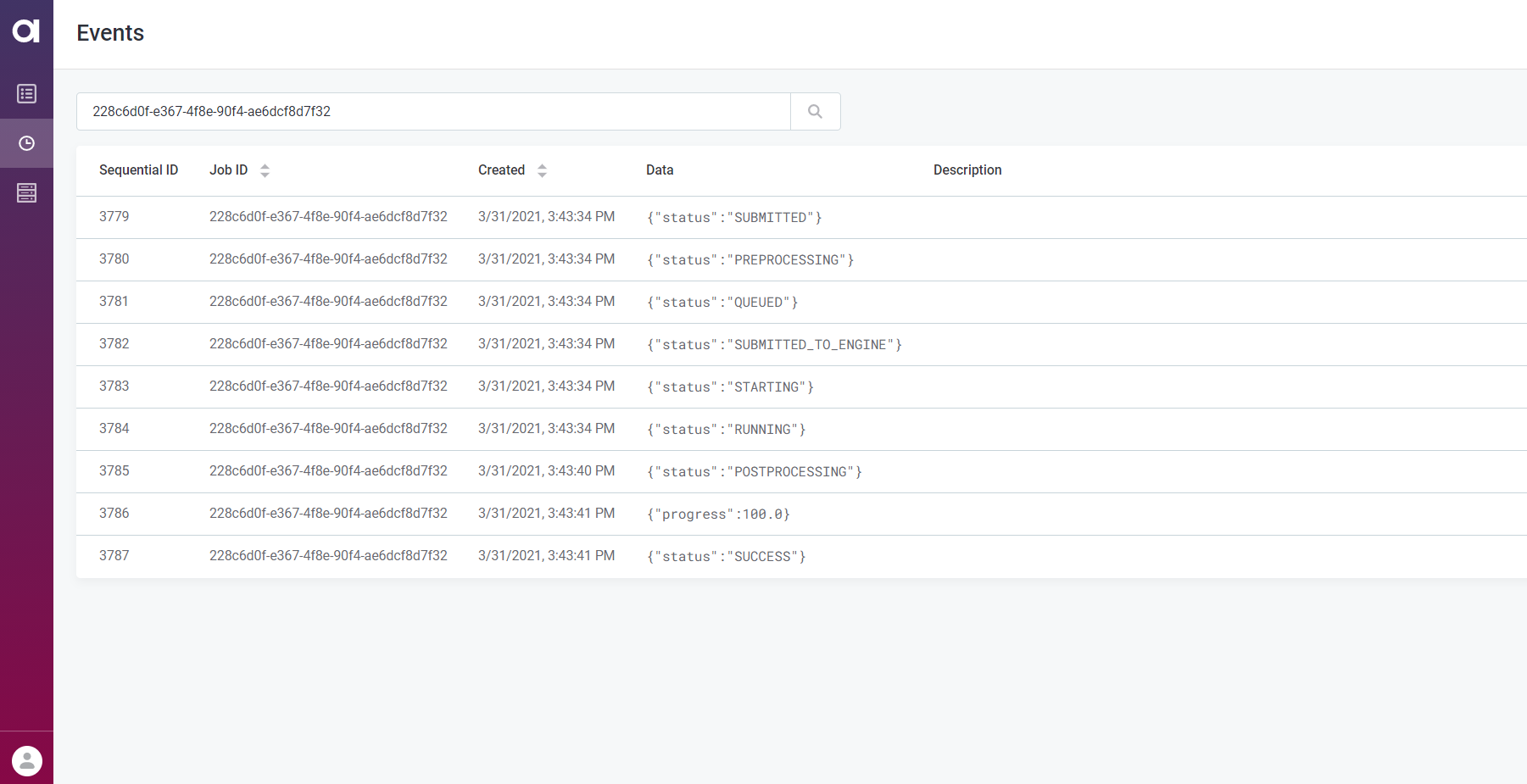
To view all events connected to this job, select Open related events. See Events.
-
Priority (2): Adjust the priority of running jobs in the job queue. The priority level is defined in integers.
-
Runtime Information (3): Details about how the job was submitted and executed. Use these to debug jobs without searching through the logs.
-
Submit Details: Files, directories, and configuration settings used when submitting the job.
For example, this covers the locations of working (
localRoot), job (dir), and runtime (runtime) folders, runtime (RuntimeConfiguration) and server (dqdServerConfig,config) configurations, data source and catalog item details, entity, component, and plan structures, entity attributes, launch type (for profiling jobs), and more. -
Stdout: The job processing STDOUT stream.
-
Stderr: The job processing STDERR stream.
-
Others: Additional information about the files and scripts used to submit the job, such as dependencies properties (the lookups and components used in the job) or the job PID.
-
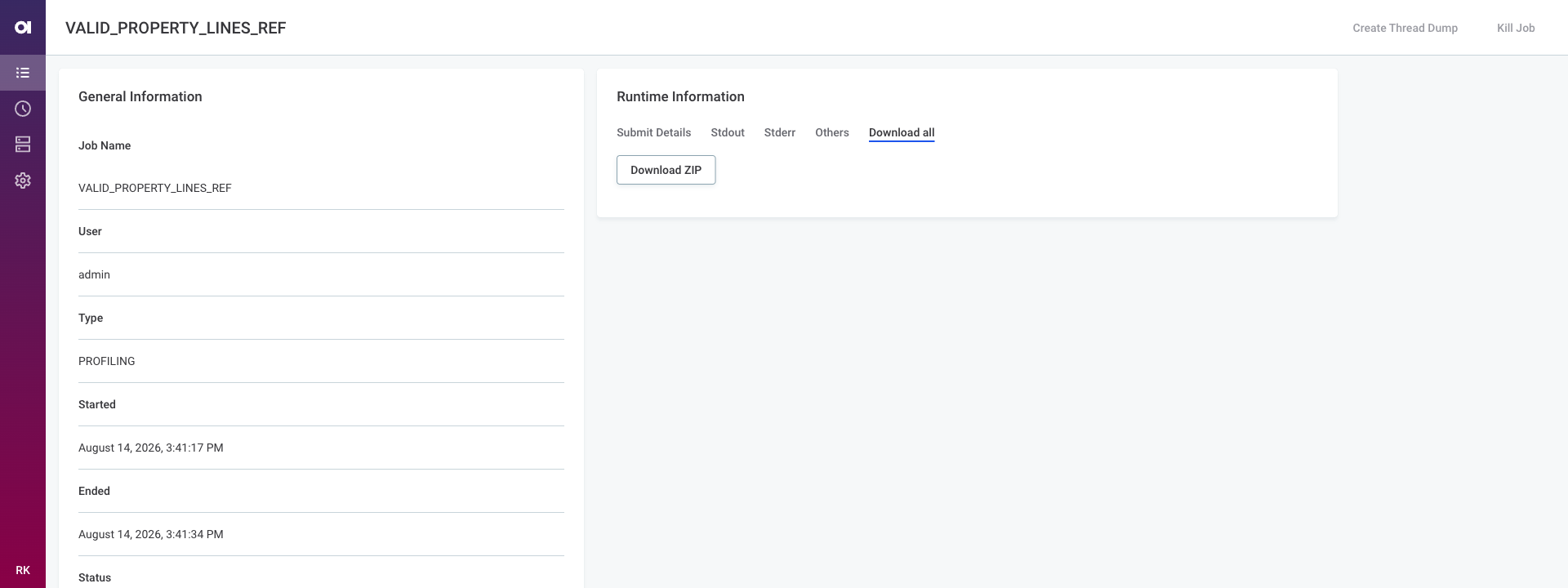
Download all: Download all job information available in DPM Admin Console as a single ZIP archive. To download the archive, select Download ZIP. The archive is named
job-<job_id>-details.zipand contains the job logs, submit details, and other related files.This is useful when you need to share debugging information, for example, with Ataccama Support. The archive doesn’t include any data such as profiling results or invalid records, and credentials are masked.
-
-
Kill Job (4): Cancel running jobs. You can also cancel a job from the Jobs overview. When that is no longer possible, the option is grayed out.
-
Cancel all jobs: Cancels all jobs that are not in the state
KILLED,FAILURE, orSUCCESS. Cancelled jobs can’t be resumed.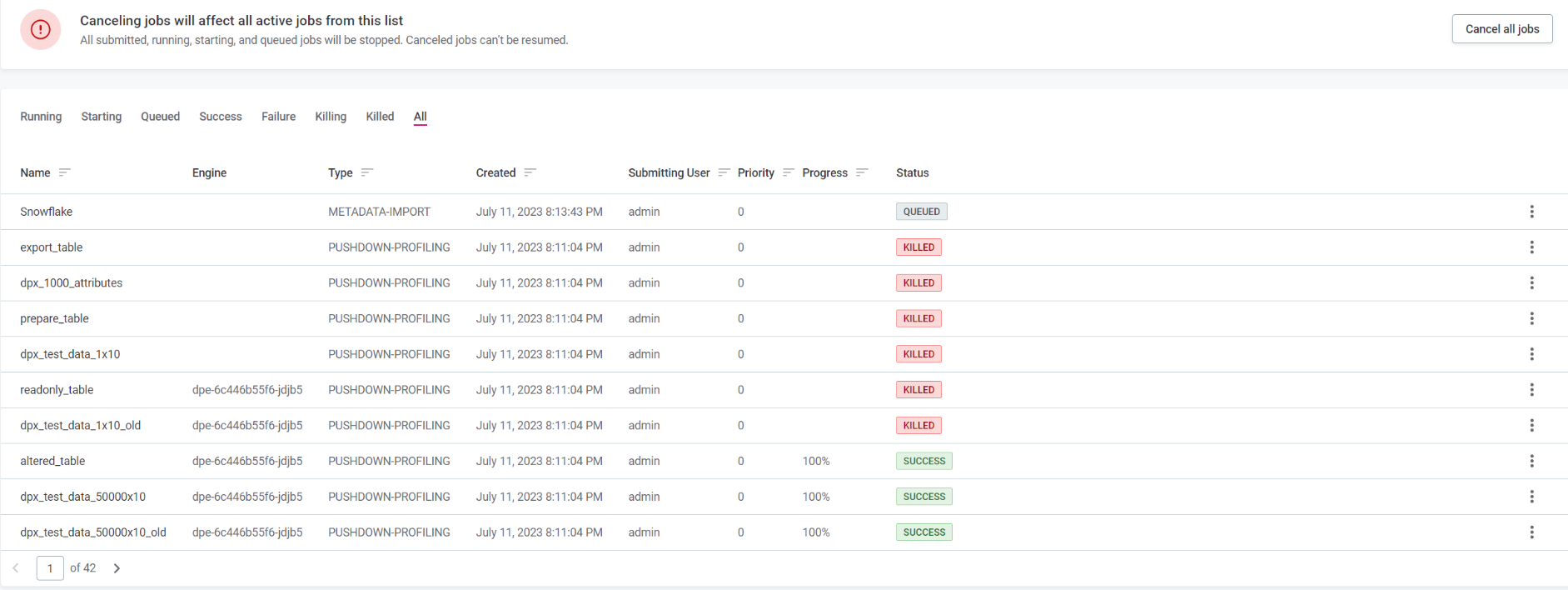
Events
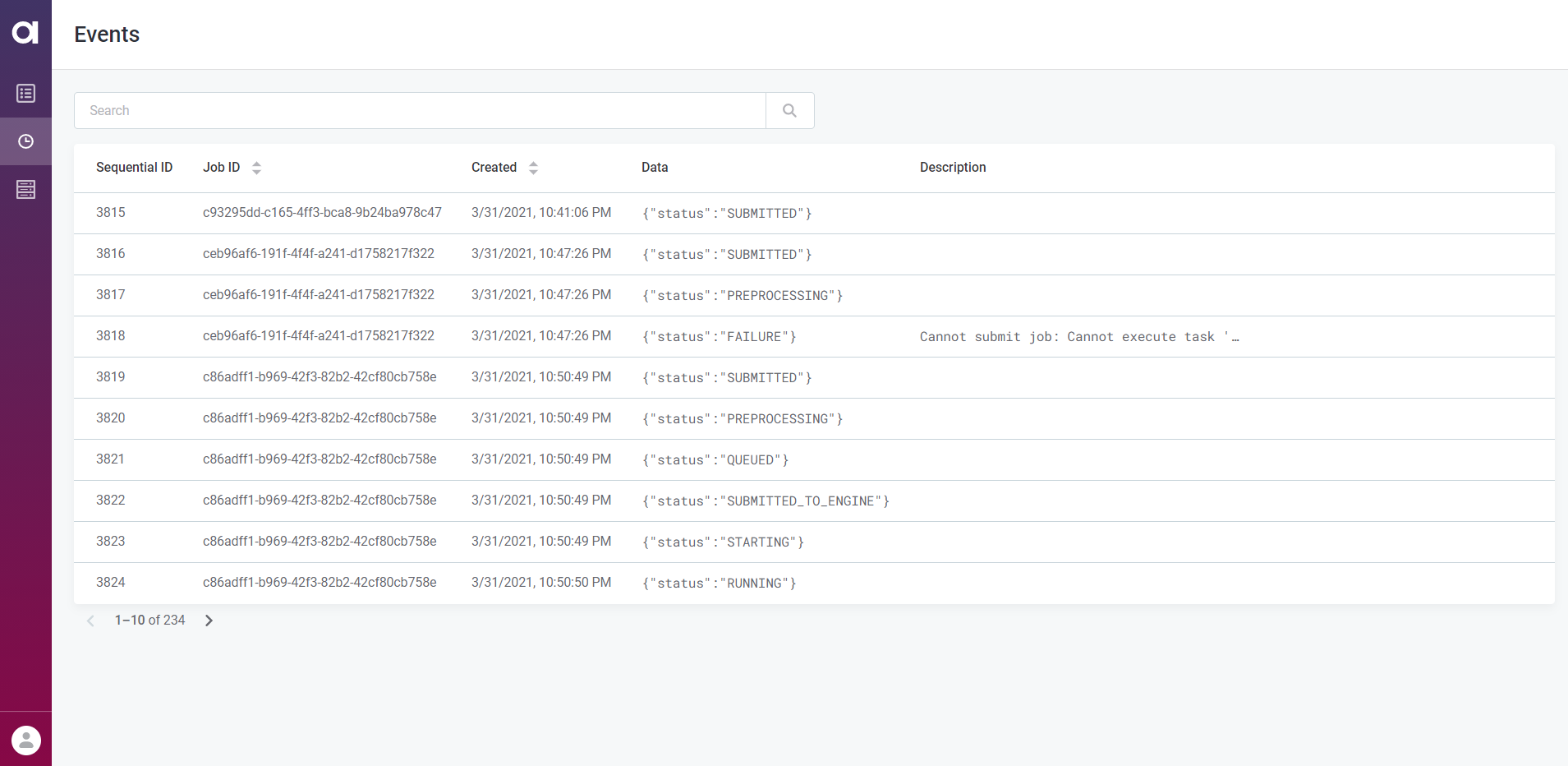
Events trace the stages a data processing job goes through, from start to finish. This makes it easier to identify why and at which point a job failed.
The Events overview lists all events that DPM registered and provides the following details:
-
Sequential ID: The consecutive number assigned to the event when it was initiated.
-
Job ID: The identifier of the job to which the event is connected. This identifier can be used to retrieve all events related to a single job.
-
Created: The date and time when the event was created.
-
Data: Typically the status or the progress of the event.
-
Description: Any additional information relevant for the event.
Events can be sorted by the job identifier (Job ID) or the time of creation (Created). Selecting an event shows the event information in the sidebar.
Engines
View all DPEs handled by your instance of DPM.
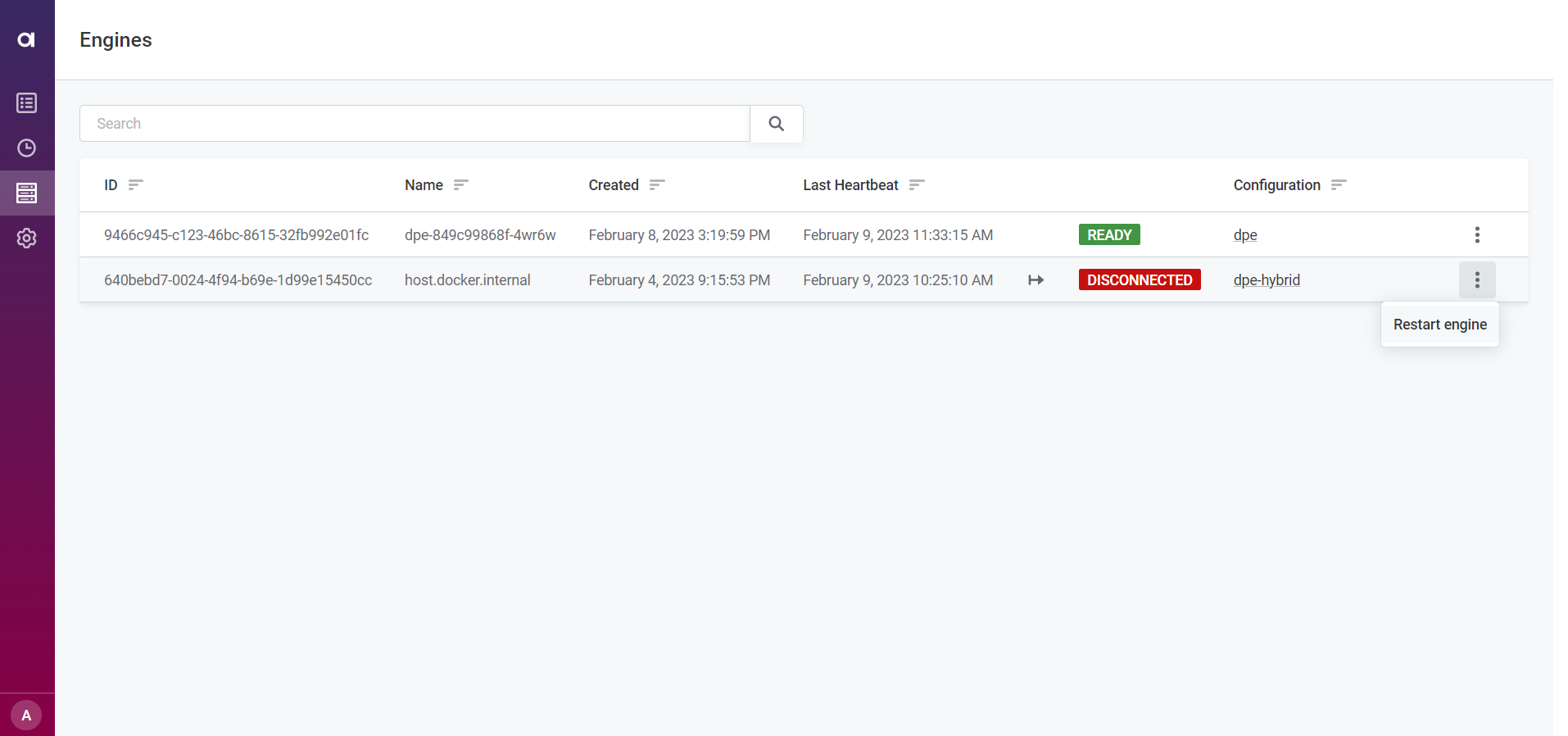
For each engine, you can see the following information:
-
ID: The engine identifier.
-
Name: A meaningful name for this engine.
-
Created: The date and time when the engine was registered with DPM.
-
Last Heartbeat: The last heartbeat that DPM received from this engine, that is, the last time that DPM was able to check the engine’s status.
-
Status: The current status of the engine. If the engine is running, the status is
READY. -
Configuration: Displays the DPE label assigned to each engine.
Select a label to see the configuration page for all DPEs grouped under that label. For more information, see DPM and DPE Configuration in DPM Admin Console, section Configure DPE labels.
DPEs with different configurations must have unique labels, as changes made to one DPE with a particular label affect all other DPEs with the same label. -
Restart: You might need to restart your DPEs for your changes to take effect. To do this, select the three-dot menu next to the DPE you want to restart and then Restart engine.
If a DPE requires a restart, for example, after you disable a driver, this is indicated on the Engines tab until the engine is restarted. For details, see Configure drivers.
If you want to turn this option off for a particular DPE, set the ataccama.one.dpe.restartEnabledproperty tofalse.
Select the engine from the list to view the following additional information:
-
Address: The location (host and port) at which the engine is available.
-
Max Message Size: The maximum size of messages that can be processed by the gRPC server, specified by the property
ataccama.server.grpc.max-message-size. -
Constraints: Define the capabilities of each engine and help route jobs to particular DPEs based on those characteristics, such as the connected data sources, file systems, or job types. For more information about how to configure constraints, see Constraints Configuration.
Configuration
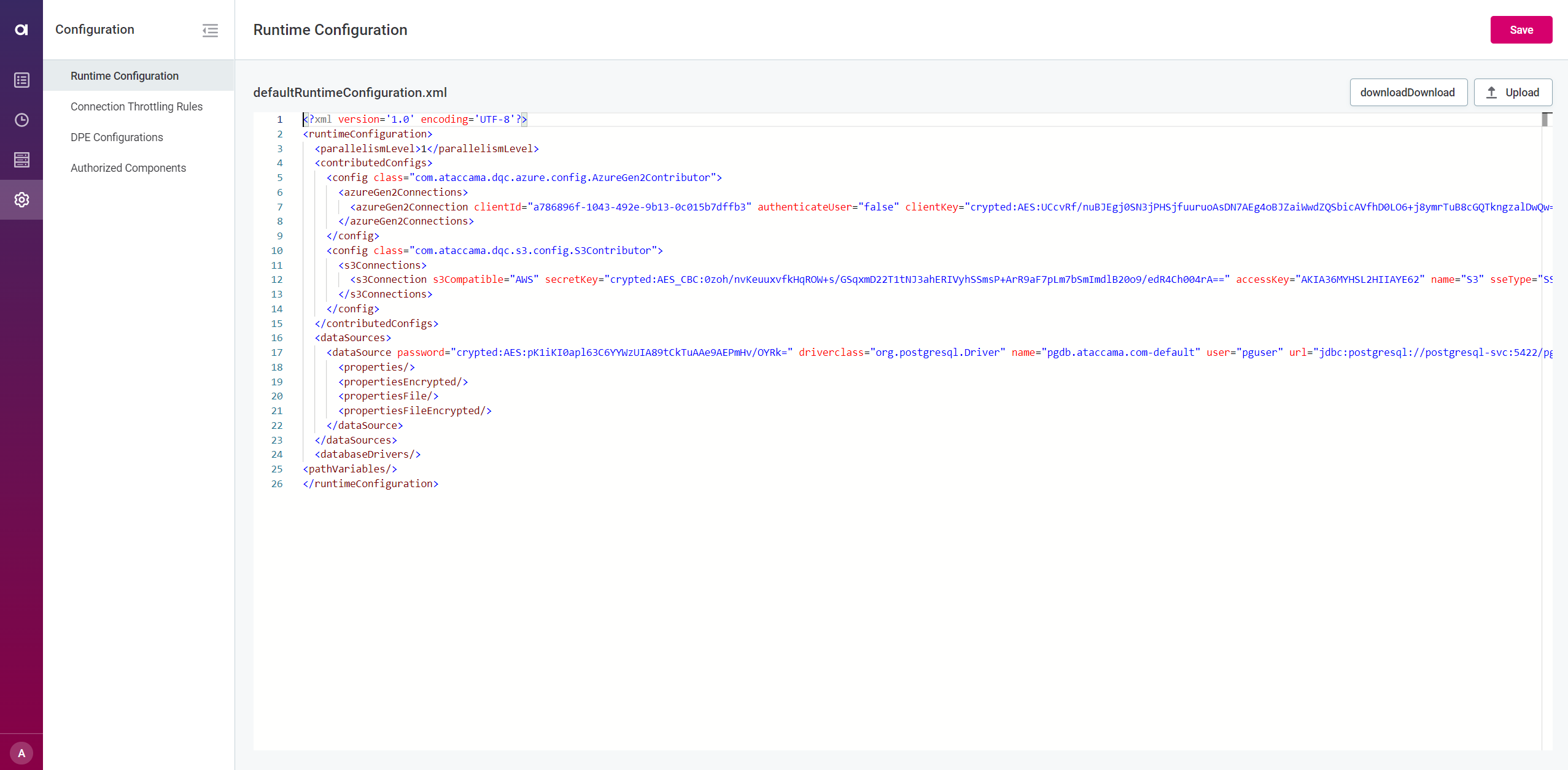
On the Configuration tab, you can configure specific DPM and DPE properties. The tab contains the following sections:
-
Runtime Configuration: For configuring the global runtime file.
-
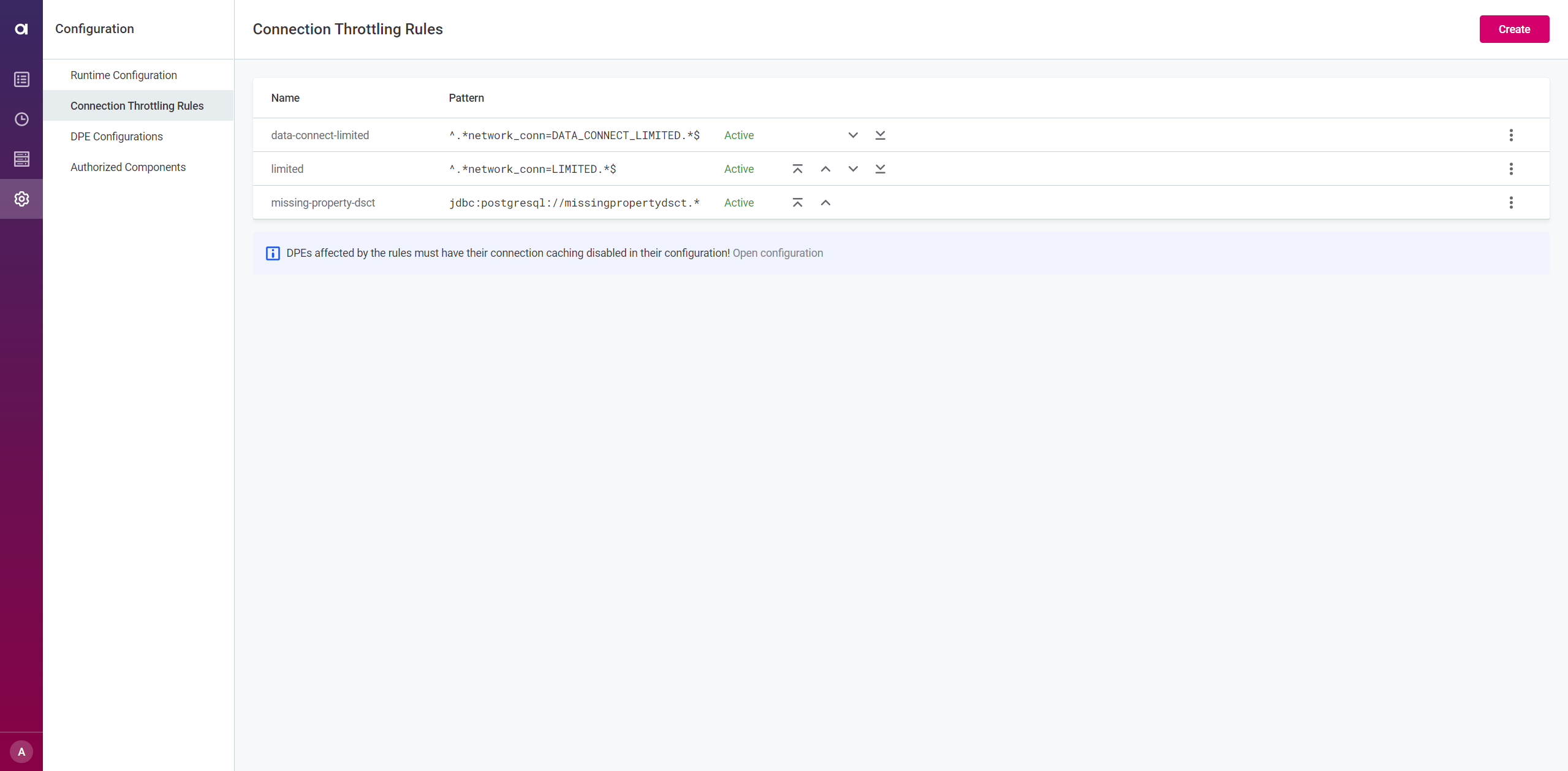
Connection Throttling Rules: For limiting connections to prevent overconsumption.
-
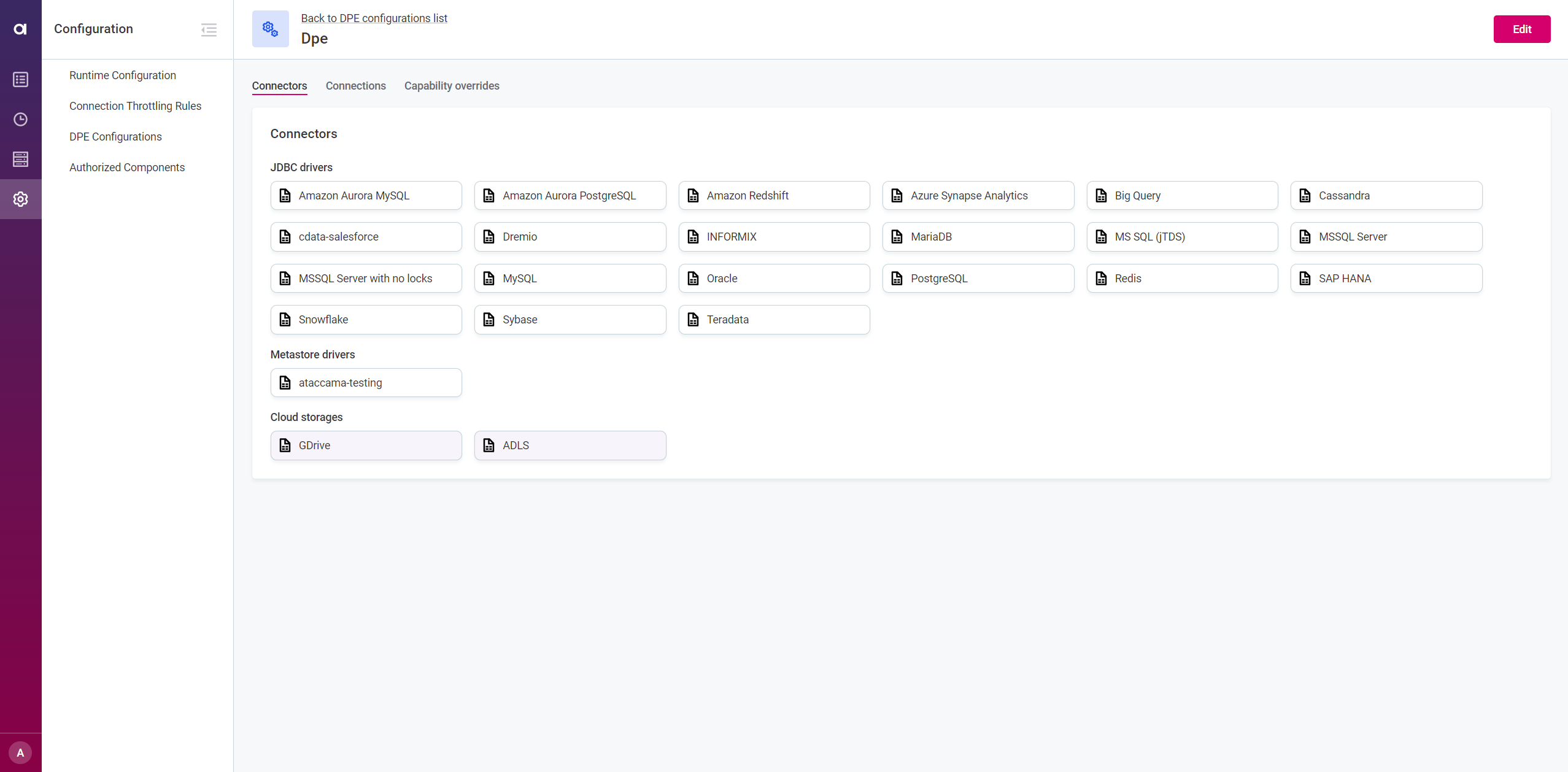
DPE Configurations: For managing data sources in DPE.
-
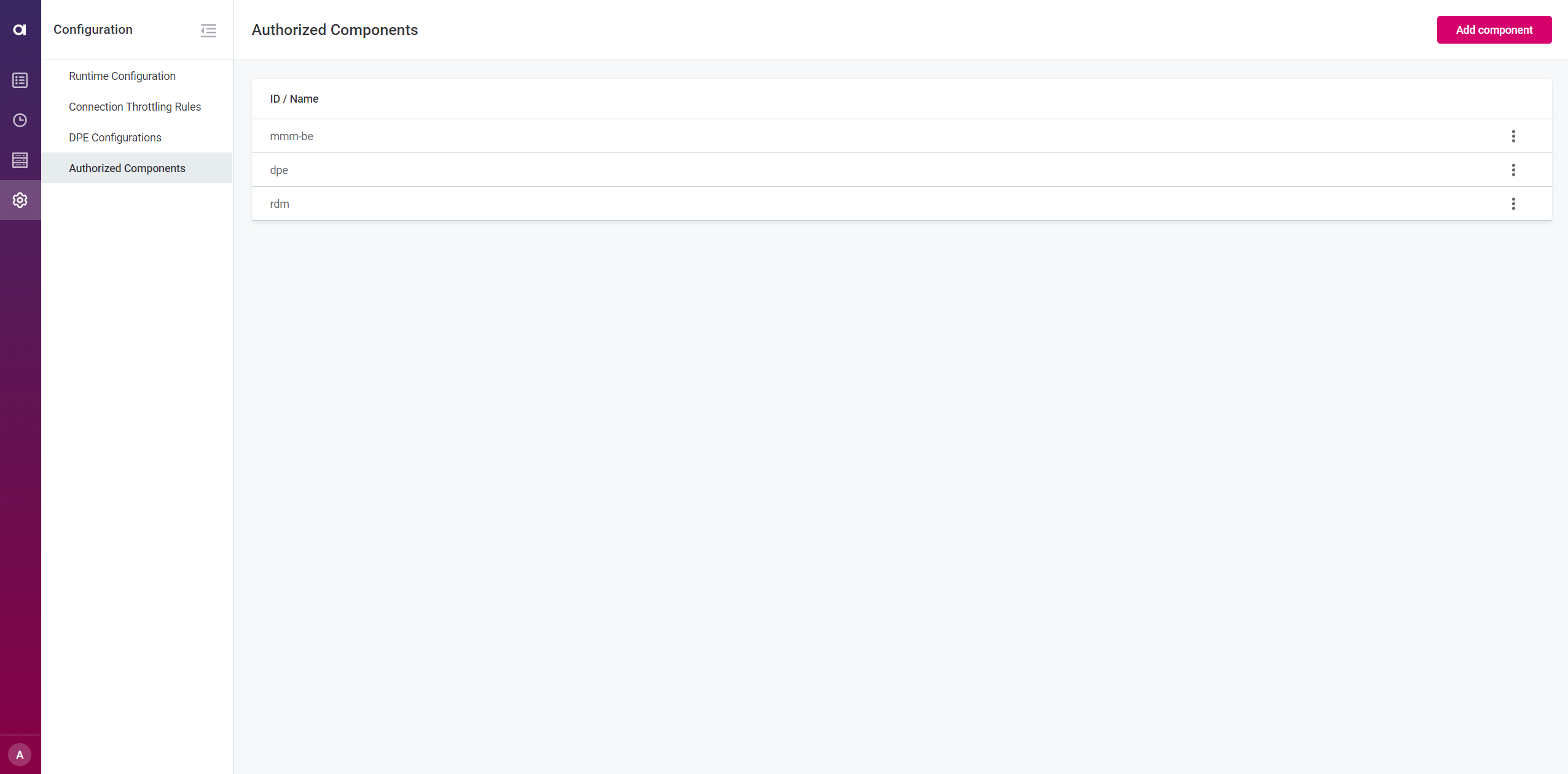
Authorized Components: For establishing communication between DPM and DPE modules.
To learn more, see DPM and DPE Configuration in DPM Admin Console.
Was this page useful?