
Add DQ Rules to Terms
After you create a DQ evaluation rule, add it to the terms assigned to the attributes you want to evaluate. During the next DQ evaluation, the rule runs on every attribute that has those terms.
Add rule to term
To add a DQ rule to a term:
-
Go to Business Glossary.
-
Select Terms.
-
For the required term, select the Settings tab.
-
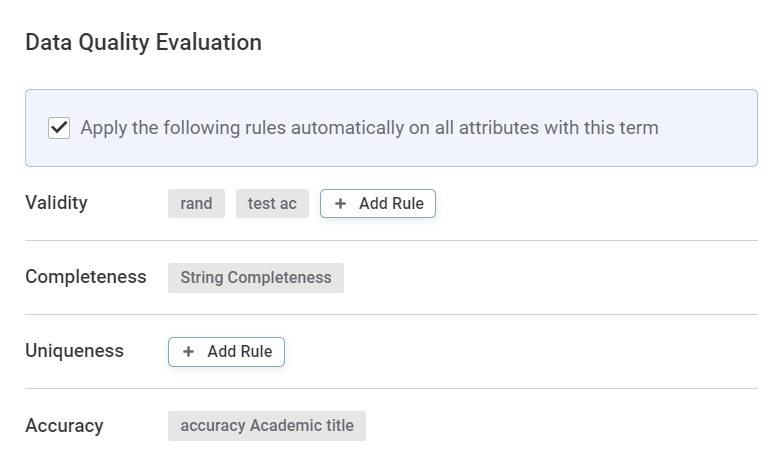
In the Data Quality Evaluation section, select Add Rule. Rules are divided according to the dimension.
-
Select the rule from the list and then Apply.
When to add rule to term or apply it to attributes manually
Apply a rule directly to attributes instead of adding it to a term in the following cases:
-
Different parameter values per attribute: Parameter values set when a rule is added to a term apply to every attribute that has the term. To use different values for individual attributes, apply the rule directly to each attribute.
-
Multi-input rules: You can’t add multi-input rules to terms. Apply them directly to attributes instead.
Rules applied directly to attributes count toward the data quality of the attribute and its catalog item, but not toward the data quality of the term.
Was this page useful?