
Search
Finding the right data for your analysis, reporting, or business needs is crucial for making informed decisions. Ataccama ONE offers a powerful search engine that lets business users easily find what they need while also allowing technical users to execute complex search queries.
You can search across all datasets or narrow your search to a specific entity:
-
Global search searches across all datasets. Use this when you’re not sure where your data lives. Access it from the main navigation, homepage search bar, or using the Ctrl+K (or ⌘K) shortcut.
For more information, see Global search.
-
Entity-specific search searches within a specific entity, such as catalog items, detection rules, or terms. Use this when you know the type of asset you need. The search is available on the entity page. You can apply filters to refine results.
For more information, see Entity-specific search.
Global search
To use global search:
-
Open global search by selecting the magnifier icon in the left navigation menu or pressing Ctrl+K (or ⌘K).
-
Start typing in the search bar to display search suggestions. Enter at least three characters for the search to start.
For each search suggestion, you can see the asset name and type.
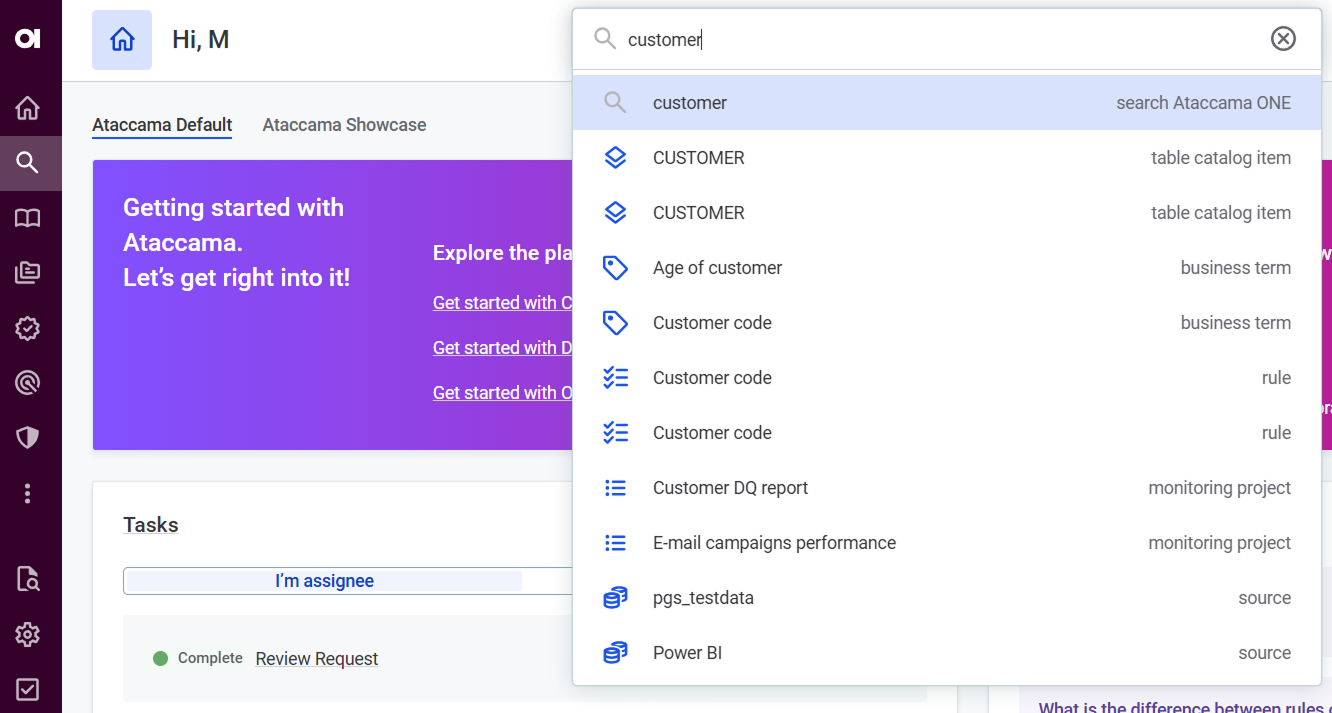
If your input is empty, you see navigation sections suggested instead. Select a section to open the search within that specific section.
-
Select an asset from the list to open it, or press Enter to open the Search screen with complete search results. The results are organized by entity type, and you can use filters (if configured) to narrow down the results.
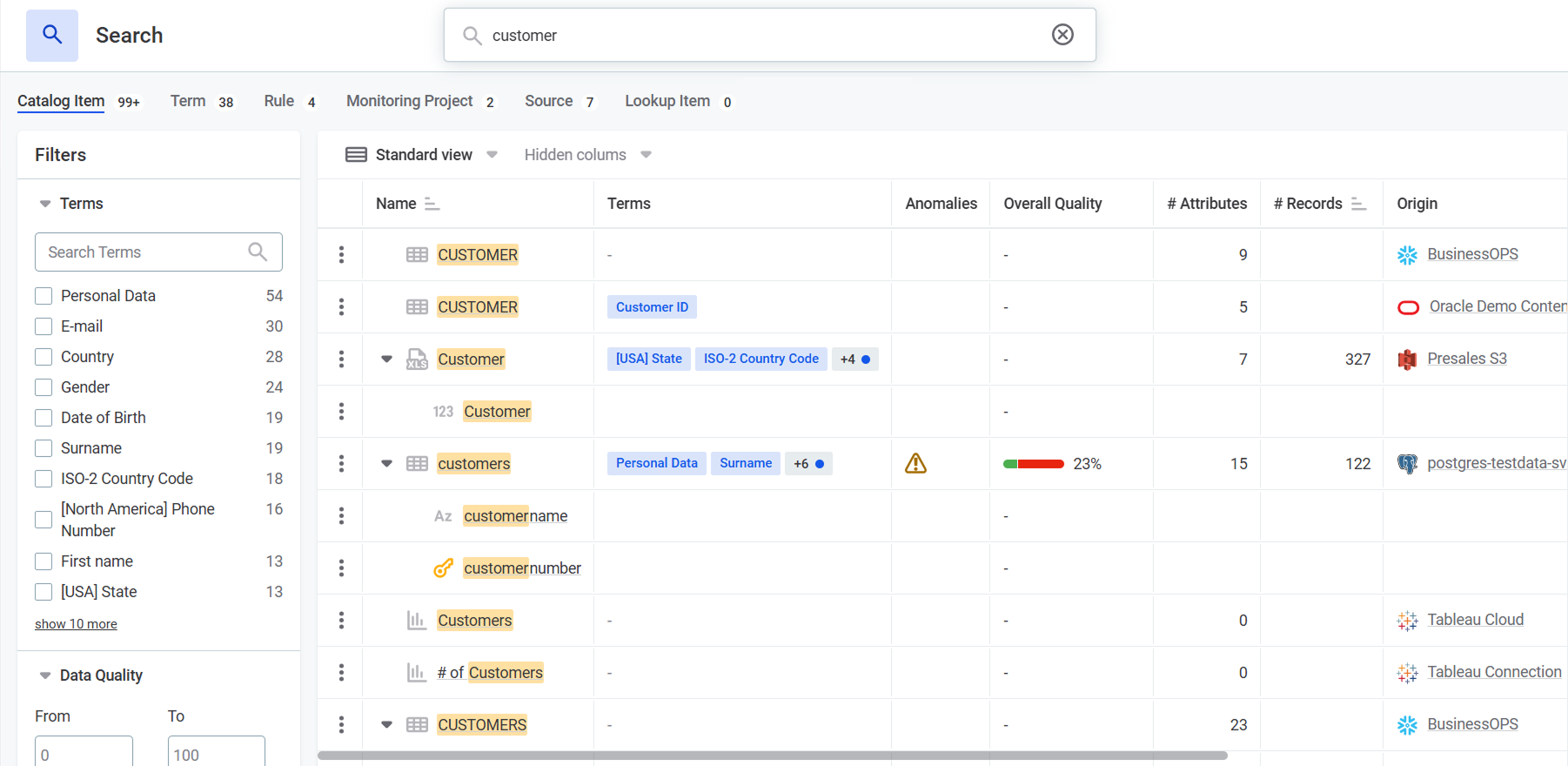
Global search includes the following entity types by default: catalog items, terms, rules, monitoring projects, sources, and lookup items. To include additional entity types, see Create new search configuration.
Entity-specific search
To search within an entity:
-
Navigate to the entity type you want to search in (for example, Catalog Items).
-
Optionally, filter assets by state first: Published, Unpublished, or All.
The available search method depends on the selected state:
-
Published assets use full-text search.
-
Unpublished assets use legacy full-text search only.
-
All assets use legacy full-text search or AQL search.
For more details, see Alternative search methods.
-
-
Type your search query in the search bar and press Enter.
-
Apply filters to narrow down results.
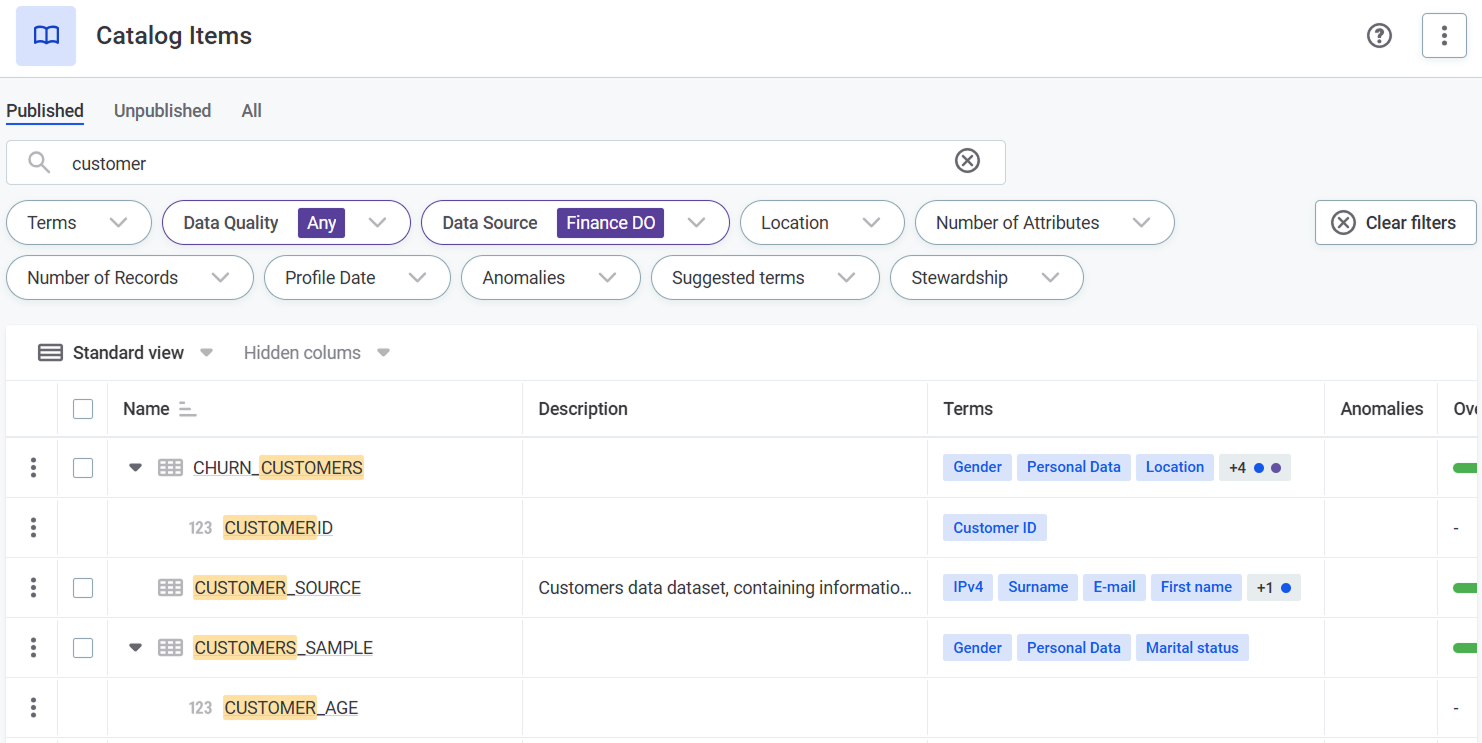
To remove an individual filter, expand it and select Clear. To remove all filters, select Clear filters.
Filters use AND logic between different filter types and OR logic between values within the same filter.
Sort search results
- Sort by relevance
-
By default, search results are sorted by relevance based on how closely the query matches entity names: Exact match > partial match > multi-token match. If results contain attributes from the same catalog item, those are also sorted by relevance.
When searching catalog items, results appear in this order:
-
Catalog item name
-
Term name, regardless of where it is assigned
-
Attribute name
-
Everything else.
-
- Manual sorting
-
You can manually sort results to override the default relevance sorting:
-
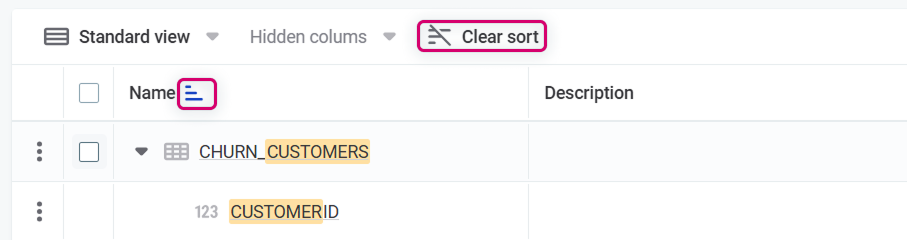
Use the sorting icon next to the column name to sort results in the ascending or descending order.
-
Use Clear sort to remove sorting.
-
Tips for efficient search
- Know what you’re looking for?
-
Use specific keywords like catalog item names, attribute names, or business terms. Try variations if the first search doesn’t work (for example,
customer,cust,customer_data). - Not sure where to start?
-
Start with the Business Glossary and search for business concepts (
personal data,revenue,customer address). For each term, view the Occurrence tab to find related datasets. - Narrow results with filters
-
Apply filters by data source, stewardship, data quality, or processing date to eliminate irrelevant results.
- Search by what you remember
-
If you don’t recall the exact dataset name, try searching by attribute names you know (for example,
transaction_amount,email_address) or business terms assigned to the data. - Always validate before using
-
Preview sample records, check the data quality score, review DQ rules results, and trace lineage to confirm the data is accurate, up-to-date, and appropriate for your needs.
- When in doubt, ask
-
Contact the data owner or data steward listed in the asset metadata to verify you’re using the right data source and understand any limitations.
How search works
Full-text search
Full-text search is the technology that powers both global and entity-specific search. It is based on Elasticsearch.
Where full-text search is available
Full-text search is used in the following places in ONE:
-
Global search: Searches across all preconfigured entities (catalog items, terms, sources, rules, monitoring projects, lookup items).
-
Entity-specific search: Searches within a specific entity page. Available under these conditions:
-
On entity pages that have been configured for full-text search. Each entity page must be configured separately—for example, full-text search on the Terms page does not automatically enable it on the child Business Terms page.
-
On Published assets only (not available for Unpublished or All views).
-
For hierarchical entities only on Flat listing views.
-
When full-text search is not available, Alternative search methods are used instead.
For information on configuring full-text search, see Configure Search.
Search features
Full-text search includes these features:
-
Search is case-insensitive.
-
Non-alphanumeric characters are used as delimiters.
-
Stop words are not considered (for example,
a,the,is,are). -
Search terms are stemmed using algorithmic stemmers.
-
Hyphenated words are supported.
-
Concatenated words are supported (for example,
deliveryaddress,postalcode). -
Search-as-you-type is supported (for example,
custwould returncustomersandcustom). -
Multiple words are treated as separate queries joined by OR (for example,
mail contactreturns results containingmailorcontact).
Alternative search methods
When full-text search is unavailable, you can choose between legacy full-text search or AQL search.
To select a search method, expand the menu in the search bar and select Full-text Search (legacy) or AQL Search.
- Legacy full-text search
-
Searches through asset names in entity listings. Powered by the Metadata Management Module (MMM). Used as a fallback when full-text search is unavailable or not configured.
By default, multiple words are treated as a single phrase (for example,
customer datasearches for that exact phrase). To search for multiple terms separately with OR logic, enter each query and press Enter, then add the next query and press Enter again. - AQL search
-
AQL (Advanced Query Language) is an in-house query language designed for complex search requests on entity listings. It provides search and filtering capabilities using easy-to-write conditions, allowing you to filter entities based on various parameters you define in the query. For more details, see AQL Query Syntax.
Was this page useful?