
Unique Encryption Keys
Unique encryption keys secure the communication between Ataccama Cloud and the components you run outside of it: self-managed Data Processing Engines (DPEs), ONE Desktop, and the ONE Desktop local runtime. Each environment gets its own encryption key, provided as a keystore file that you generate in the Ataccama Cloud Portal, which is the Ataccama Cloud administration and configuration interface. You then supply the keystore to every edge component connecting to that environment.
This page describes how to generate the keystore and how to configure a self-managed DPE to use it. For ONE Desktop and the local runtime, see Unique Encryption Keys in the ONE Desktop documentation.
How unique encryption keys protect your environment
Using unique encryption keys contributes to the overall security of your deployment in the following ways:
-
Provides additional protection against unauthorized access to your data and environment in Ataccama Cloud.
-
Keeps data encrypted and compliant with data protection regulations.
-
Helps mitigate data leakage risks and protects data in transit and at the edge of the network.
-
Secures communication between Ataccama ONE and edge components, such as self-managed DPEs and ONE Desktop.
Unique encryption keys can be rotated and securely backed up and restored without getting embedded in the backup.
The keys are stored in a Java Cryptography Extension (JCE) keystore file (keystore.jceks).
In the Helm values.yaml file generated by the Cloud Portal for Kubernetes-based DPE installations, the keystore is embedded as a Base64-encoded string.
Generate the keystore in the Cloud Portal
All edge components connecting to the same environment must use the same keystore.
If your environment is not managed through the Cloud Portal, contact Ataccama Support to obtain the keystore and its password.
To generate the keystore in the Cloud Portal:
-
In the Cloud Portal, go to your environment and switch to the Services tab.
-
In Shared Services, find ONE Desktop and select Instructions.
-
In Use keystore file, select Generate.
-
Once the keystore is ready, download the keystore file (Download keystore.jceks) and copy the corresponding password.
Keep the dialog open until you finish configuring all components in case you need to return to it. Otherwise, you have to generate a new keystore and password. 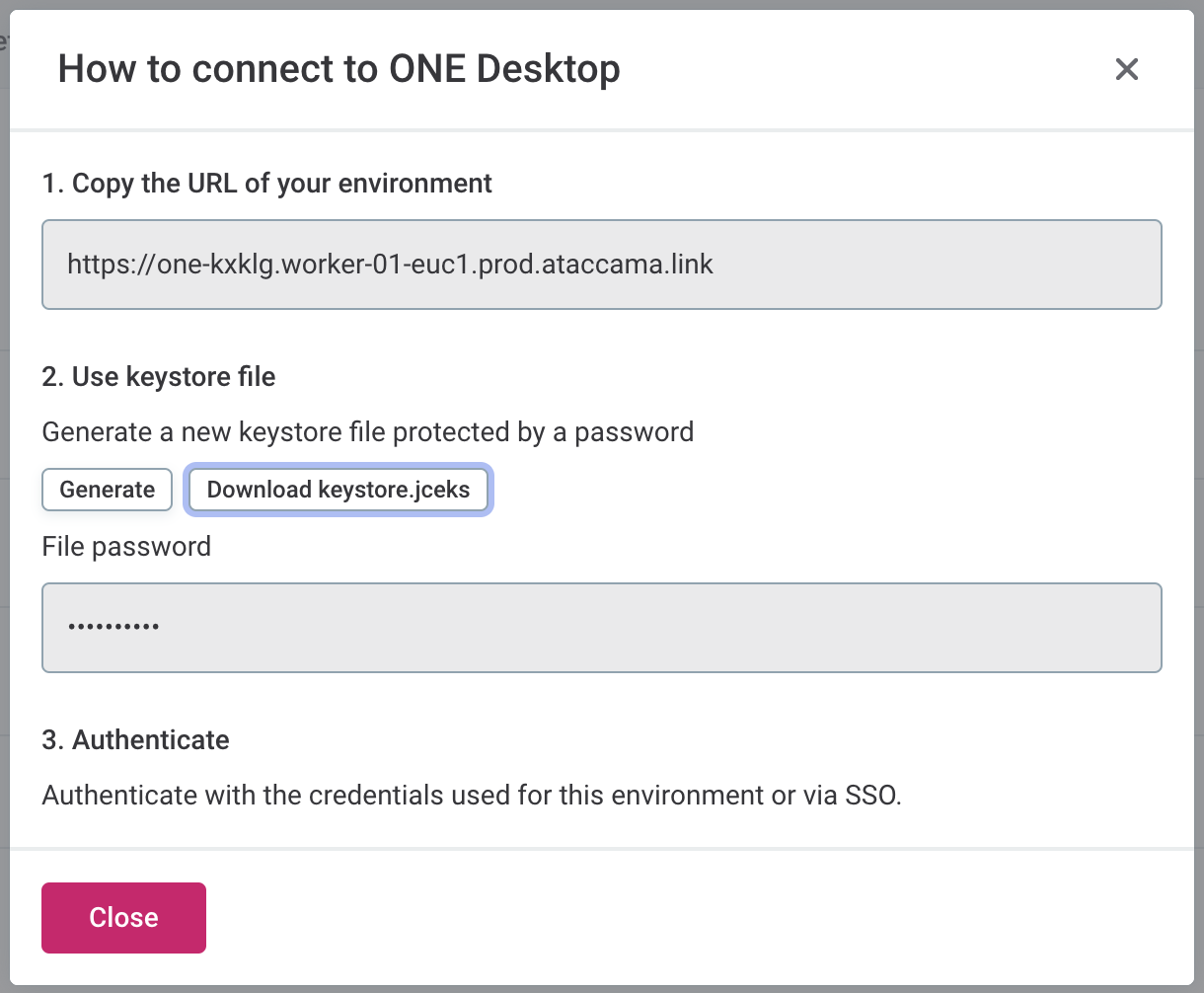
Configure self-managed DPE to use the keystore
How you supply the keystore to a self-managed DPE depends on how the DPE is installed:
-
New Kubernetes-based installations: The keystore and its configuration are included in the
values.yamlfile generated by the Cloud Portal. No additional steps are required. See Kubernetes-Based Hybrid DPE Deployment Guide. -
Existing installations and VM-based installations: Add the keystore properties to the DPE
application.propertiesfile, as described in the following procedure.
To configure the keystore in application.properties:
-
Place the downloaded keystore file and a plain text file containing the keystore password in a secure location on the DPE host.
Make sure the keystore and password files are protected from unauthorized access. -
Open the
etc/application.propertiesfile in your DPE installation directory. -
Add the following properties. Replace
<PATH_TO_DOWNLOADED_KEYSTORE_FILE.JCEKS>with the path to your keystore file and<KEYSTORE_FILE_PASSWORD_FILE>with the path to the file containing the keystore password. Passwords cannot be set directly inapplication.properties.The key alias
initial_peripheralapplies to keystores generated in the Cloud Portal. If you obtained the keystore from Ataccama Support, use the alias provided with it.properties.encryption.keystore=<PATH_TO_DOWNLOADED_KEYSTORE_FILE.JCEKS> properties.encryption.keystore.passwordFile=<KEYSTORE_FILE_PASSWORD_FILE> properties.encryption.keyAlias=initial_peripheral internal.encryption.keystore=<PATH_TO_DOWNLOADED_KEYSTORE_FILE.JCEKS> internal.encryption.keystore.passwordFile=<KEYSTORE_FILE_PASSWORD_FILE> internal.encryption.keyAlias=initial_peripheral -
Restart DPE to apply the changes.
Configure ONE Desktop to use the keystore
ONE Desktop and its local runtime read the keystore from the one-desktop.ini file and the default JRE arguments.
For the procedure, see Configure ONE Desktop to use the keystore in the ONE Desktop documentation.
Was this page useful?